
Guide
Best Nuvio TV Player Settings: Subtitles, Skip Markers and a Calmer Picture
Set the built in player up once, properly: subtitle readability, intro and outro skip markers, stream choice, and settings that suit phone and TV.

GUIDE INDEX On this page
Players are usually configured in a panic, mid episode, by someone holding a remote and losing patience. This guide, based on the player testing behind Nuvio TV APK, sets everything up once, calmly, in daylight.
Subtitles first, because they matter most
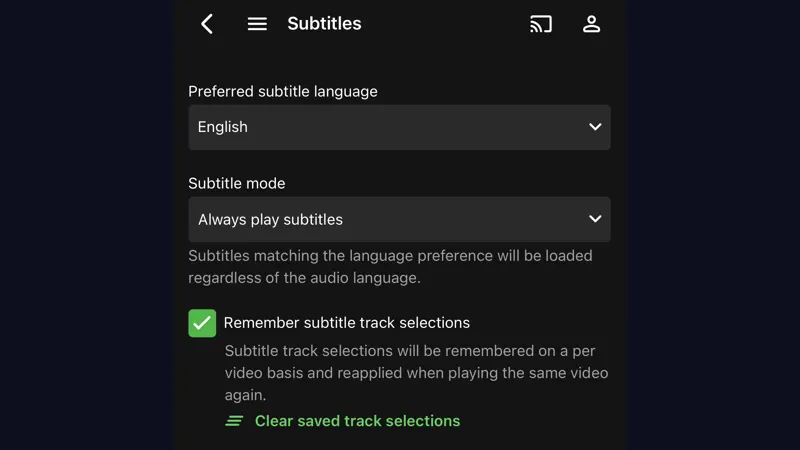
Open a subtitled episode and set size, colour and background until a line is readable at your real viewing distance, not the distance you sit at to read settings. On a television that means larger than your instinct says. The detailed choices, including what to do when a file's own subtitles are poor, are in the subtitles guide. Save the look you land on; consistency across episodes is what makes subtitles disappear into the story.
Skip markers: the quiet time saver
Intro and outro skip markers let you move past opening credits and end sequences without scrubbing. Across a twenty episode season that is real time returned, and on a remote it removes the nightly thumb dance entirely. Learn where the skip prompt appears in the player so your hand knows before your eyes do. On a binge, markers plus Continue Watching are the difference between watching a series and operating one.
Choosing a stream like a grown up
When several streams are offered, bigger is not automatically better. A mid sized stream that starts instantly and holds steady beats a giant one that buffers at every dramatic pause, especially on shared Wi-Fi. If playback stutters, work through the buffering fix guide in order rather than randomly changing things; its first check, choosing a lighter stream, is also this guide's standing advice for busy networks.
Phone settings differ from TV settings
On the phone, prioritise data sense and download quality for offline episodes, which the episode downloads guide covers. On the TV, prioritise picture steadiness and subtitle scale. The app keeps the experience consistent, but your priorities are per screen, and setting each screen deliberately is what makes the same app feel native in both rooms.
The five minute reset, when in doubt
If the player ever feels tangled after too much experimenting, note your subtitle look, return other player options to their defaults, and rebuild only what you miss. Defaults in a well made player are chosen for the median viewer; your job is only to move the few controls where your room, your screen and your eyes differ from that median.
Set it once, then forget it
Player settings repay exactly one calm session of attention. Configure Nuvio TV in daylight, test the result in Nuvio TV with a real episode, and then leave the Nuvio TV player alone. The best compliment a player can earn is that you never think about it during a finale, and that is the standard to set it to.
Quick Answers
Where are the player settings?
Inside the player during playback, and mirrored in the app settings for subtitles and playback behaviour.
Do skip markers work on every title?
They appear where marker data exists for that episode, which covers most popular series.
Should I always pick the highest quality stream?
No. Pick the highest quality your network holds steady. A stable mid tier stream is the better watch.